Set up the platform
From a Coder deployment on Kubernetes to developers opening repositories in
workspaces built from their devcontainer.json: one Helm chart, one
template push, one optional setting for private repositories. Every command
below is real.
Before you start
- Coder, running in (or with access to) a Kubernetes cluster, and the
coderCLI logged in as a template admin. - A namespace for workspaces that Coder can create Deployments and PVCs
in. The Coder Helm chart's
workspace permissions cover its own namespace; here it's
coder-workspaces. - A container registry to push the built images to, with a token that
can push. This walkthrough uses GHCR with a token that
has
write:packages. helmandkubectlpointed at the cluster.
1. Install devcontainer-builder and BuildKit
One chart installs both. Bundled BuildKit runs in the release namespace, which has to allow Pod Security privileged (ADR-0001), so create and label it first:
kubectl create namespace devcontainer-builder
kubectl label namespace devcontainer-builder pod-security.kubernetes.io/enforce=privileged
helm install devcontainer-builder oci://ghcr.io/deepspacecartel/charts/devcontainer-builder \
  --namespace devcontainer-builder \
  --set buildkit.deploy.enabled=true \
  --set registryAuth.registries[0].registry=ghcr.io \
  --set registryAuth.registries[0].username=<github-user> \
  --set registryAuth.registries[0].password=<token-with-write:packages> \
  --set 'registryMapping.rules[0].hostMatch=github.com' \
  --set 'registryMapping.rules[0].registry=ghcr.io/<your-org>'
The chart doesn't create or own the namespace, so helm uninstall
leaves it. Upgrading an install from chart 0.5.0 or earlier, which did
own it: see
the namespace for bundled BuildKit.
helm install devcontainer-builder oci://ghcr.io/deepspacecartel/charts/devcontainer-builder \
  --namespace devcontainer-builder --create-namespace \
  --set buildkit.endpoint="tcp://<buildkit-host>:1234" \
  --set registryAuth.registries[0].registry=ghcr.io \
  --set registryAuth.registries[0].username=<github-user> \
  --set registryAuth.registries[0].password=<token-with-write:packages> \
  --set 'registryMapping.rules[0].hostMatch=github.com' \
  --set 'registryMapping.rules[0].registry=ghcr.io/<your-org>'
registryMapping decides where each repository's image goes. Here, every
github.com repository goes to ghcr.io/<your-org>/<repo>:sha-<commit>
(ADR-0003).
Repositories without a devcontainer.json build on the chart's default
build.fallbackImage
(ADR-0013).
Every other value is in the Helm chart reference.
Check that it's ready:
kubectl -n devcontainer-builder rollout status deploy/devcontainer-builder
kubectl -n devcontainer-builder port-forward svc/devcontainer-builder 8080:8080 &
curl -s http://localhost:8080/health/ready
Keep the service inside the cluster
The API has no authentication of its own. The chart's Service is
ClusterIP only, and nothing but Coder's provisioner needs to reach it.
2. Let the nodes pull the images
If the registry is private (GHCR packages are, by default), the workspaces namespace needs a pull secret:
kubectl -n coder-workspaces create secret docker-registry devcontainer-images \
  --docker-server=ghcr.io --docker-username=<github-user> --docker-password=<token-with-read:packages>
3. Push the template
git clone https://github.com/DeepSpaceCartel/devcontainer-builder.git
cd devcontainer-builder/templates/coder-kubernetes

coder templates push kubernetes-devcontainer \
  --var namespace=coder-workspaces \
  --var devcontainer_builder_endpoint=http://devcontainer-builder.devcontainer-builder.svc.cluster.local:8080 \
  --var image_pull_secret_name=devcontainer-images
That's all the template needs. Its other variables (resource caps, privileged containers, VS Code in the browser, and more) have defaults; see the template reference.
4. Private repositories (optional)
To let users build and clone private repositories with their own accounts:
- Configure a Coder external auth provider
for your git host, e.g. a GitHub App or OAuth app with the ID
github. - Push the template again with
--var external_auth_id=github.
Creating a workspace then asks each user to link their GitHub account, once. Both the image build and the clone in the workspace use their token, so devcontainer-builder needs no git credentials of its own. Details are in Operating the template.
5. Create the first workspace
coder create my-first-workspace --template kubernetes-devcontainer \
  --parameter repository=https://github.com/microsoft/vscode-remote-try-node.git \
  --parameter branch=main
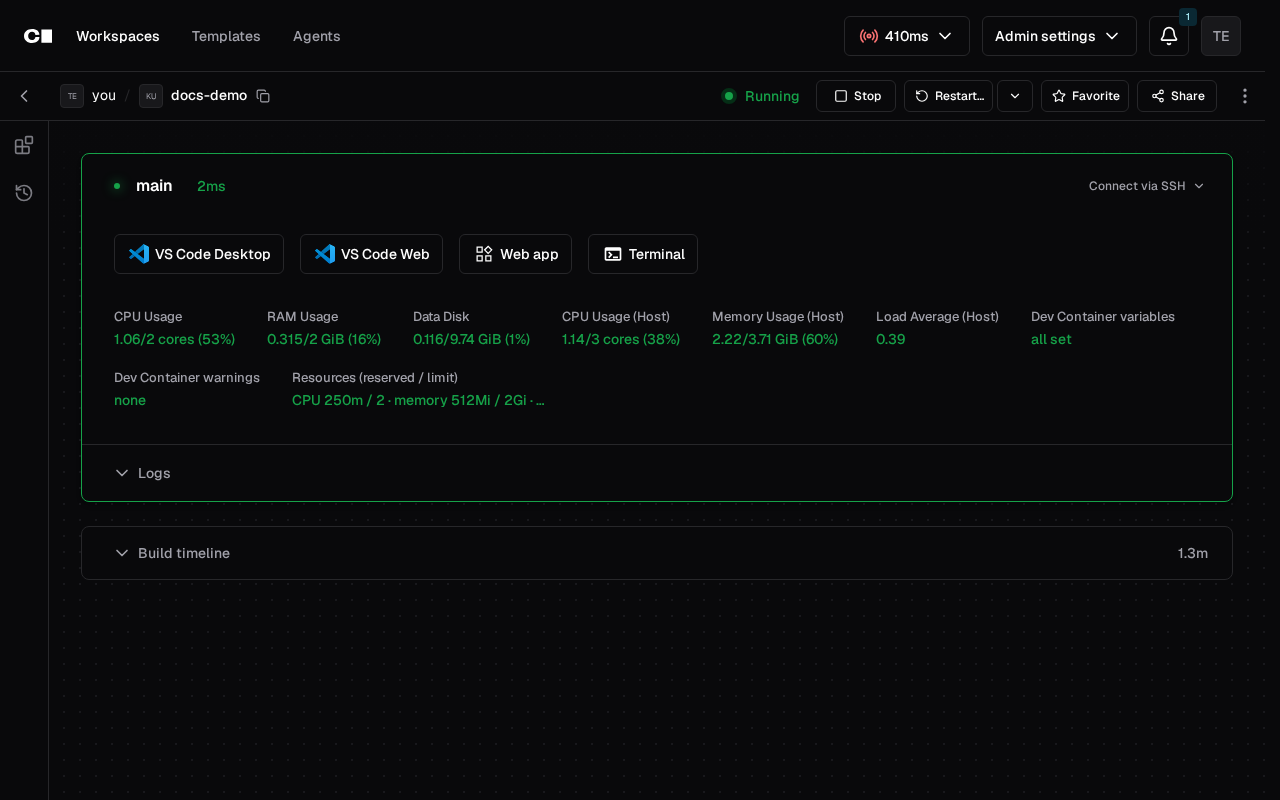
Or use Create workspace in the dashboard, which asks for Git repository and Branch. The first build of a repository takes a minute or two. The workspace page shows progress, then the apps: VS Code Desktop, VS Code in the browser, and any forwarded ports.
No wildcard access URL?
VS Code in the browser and the port apps are subdomain apps by default,
which need Coder's wildcard access URL.
Without one, push the template with --var subdomain_apps=false.
6. Tell your developers
They need nothing but VS Code and the extension. Point them to Your first workspace. To make a repository one click away, add an Open in Coder badge to its README:
[](https://<your-coder>/templates/coder/kubernetes-devcontainer/workspace?mode=manual¶m.repository=https%3A%2F%2Fgithub.com%2F<org>%2F<repo>.git¶m.branch=main)
Next: Operating the template covers resources, persistence, the workspace user, private repositories and upgrades.