Your first workspace
Open a repository in a Coder workspace built from its devcontainer.json,
change its configuration, and rebuild. This takes about ten minutes. You
need VS Code and an account on your team's Coder deployment, which your
platform admin set up.
1. Install the extension
In VS Code, search the Extensions view for Dev Containers for Coder in
K8S (deepspacecartel.devcontainer-builder). It's on the VS Code
Marketplace, and on Open VSX for VSCodium, Cursor and others.
It works together with the Coder extension (coder.coder-remote),
which connects VS Code to workspaces. You'll be offered it the first time
it's needed.
2. Clone a repository into a workspace
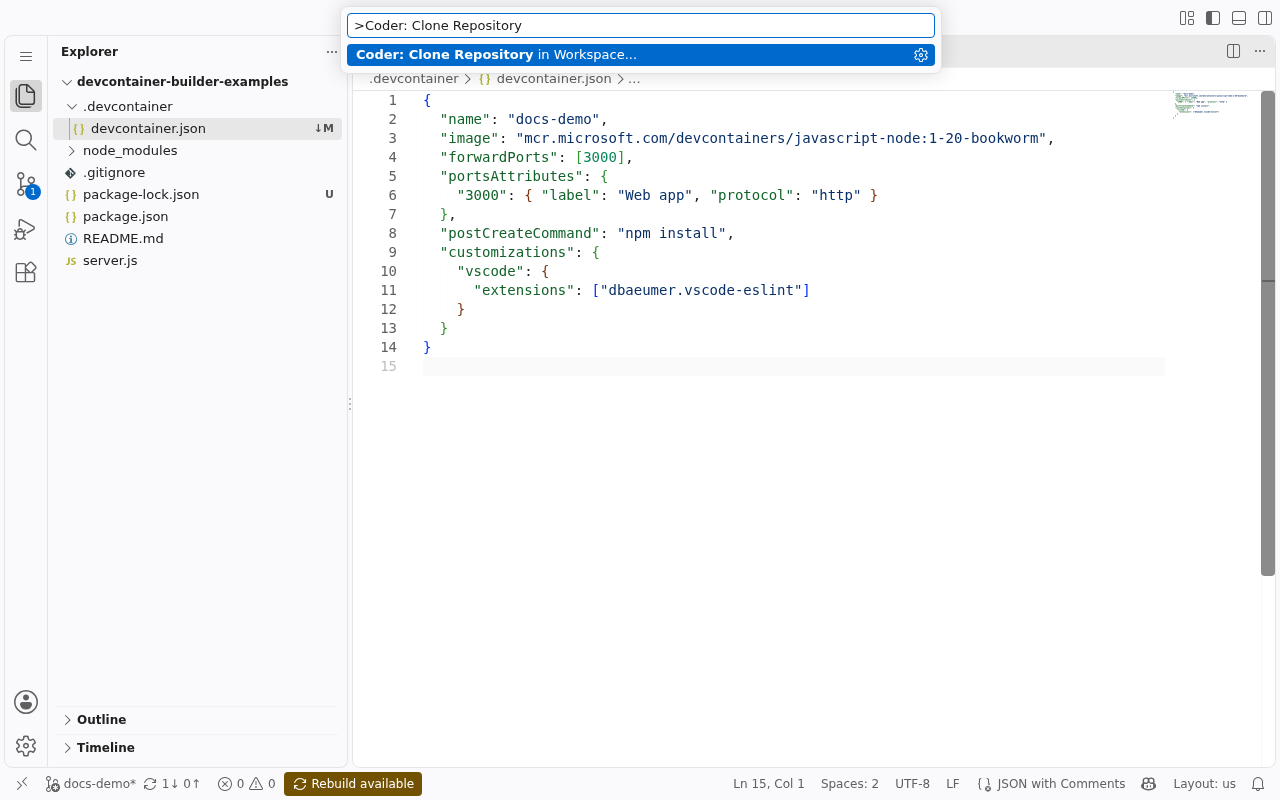
Run Coder: Clone Repository in Workspace… from the Command Palette.
- Log in to Coder if asked. If you've used the
coderCLI on this machine, its login is reused. Otherwise, enter your Coder URL and paste the token from the page it opens. -
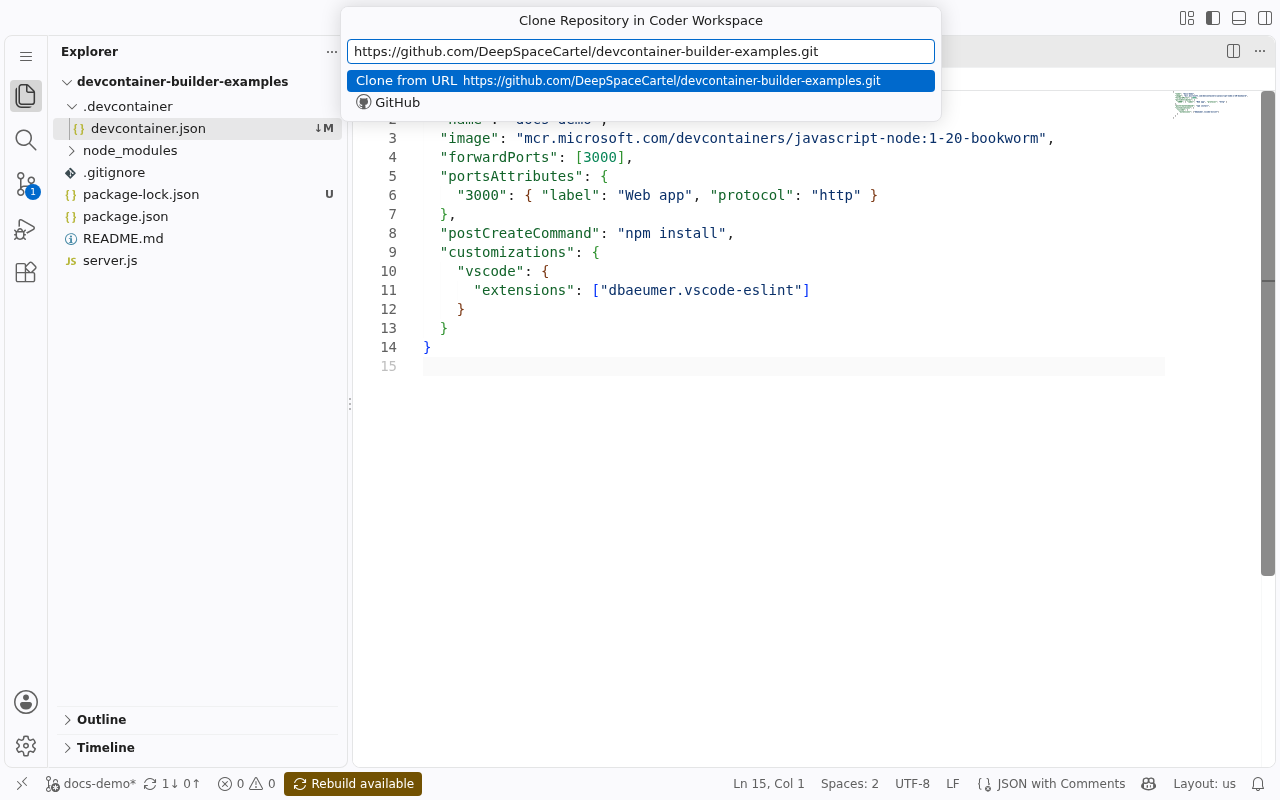
Pick the repository in the same picker Git: Clone uses. Signed in to GitHub in VS Code, choose GitHub to browse and filter your repositories. Or paste any git URL.
-
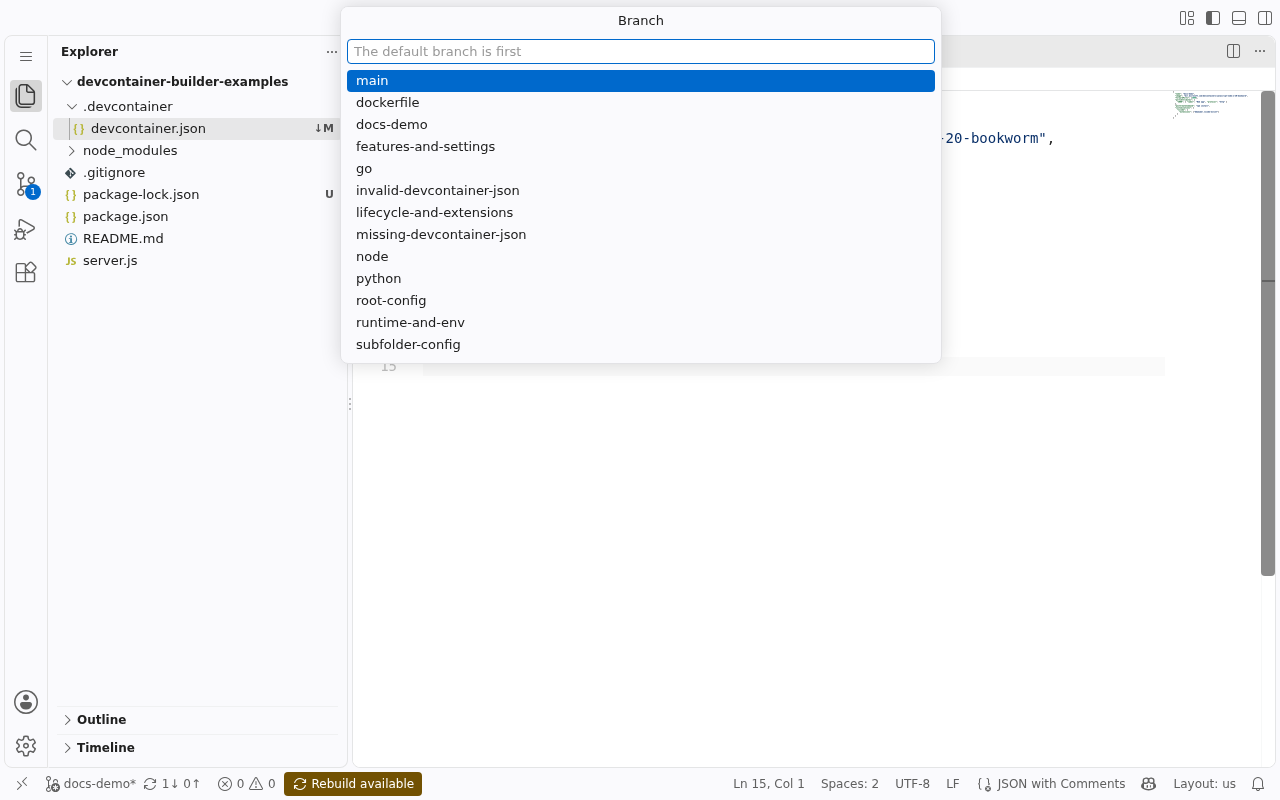
Pick the branch. The default branch comes first.
-
Link your GitHub account if your team's template asks for it (for private repositories). A browser page opens; approve it once.
-
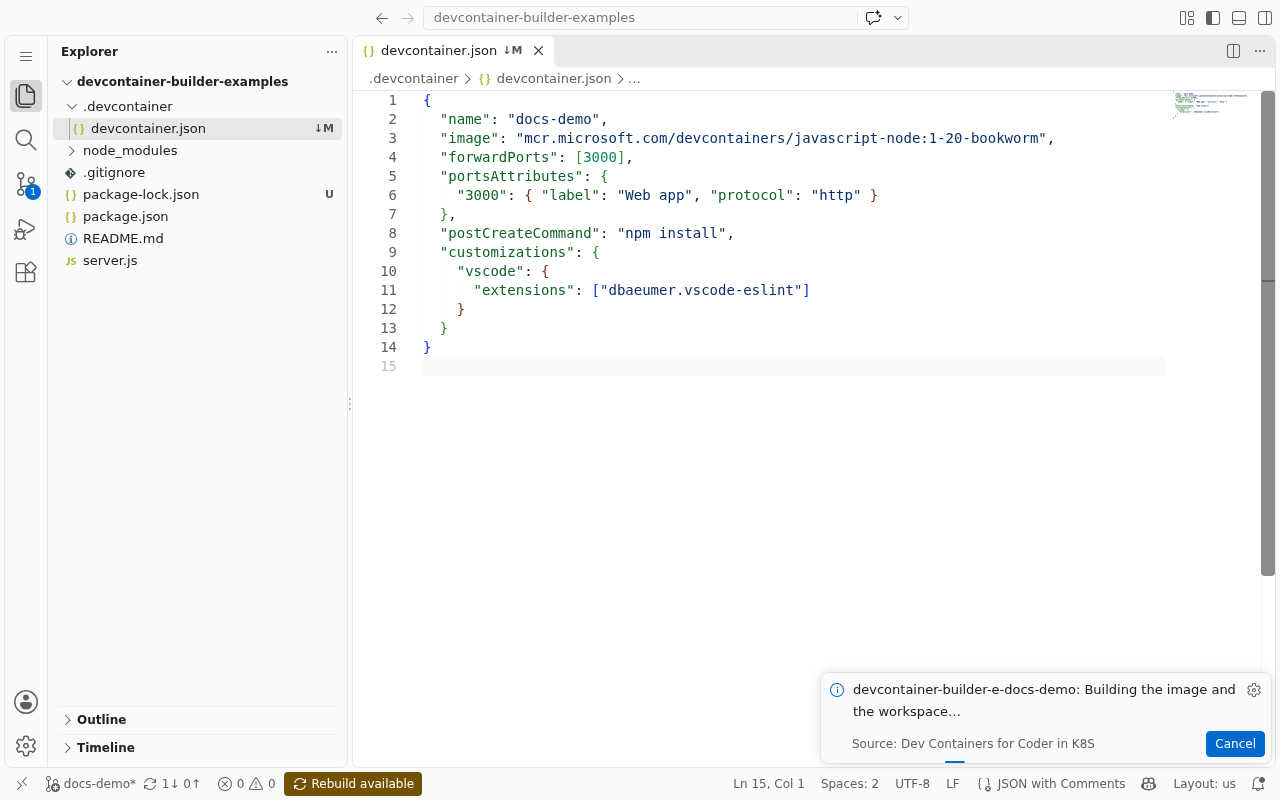
Wait for the build. A progress notification follows it through building the image, starting the workspace, cloning and running the repository's setup hooks. The first build of a repository takes a minute or two.
-
VS Code opens in the workspace, on the cloned repository, in a new window.
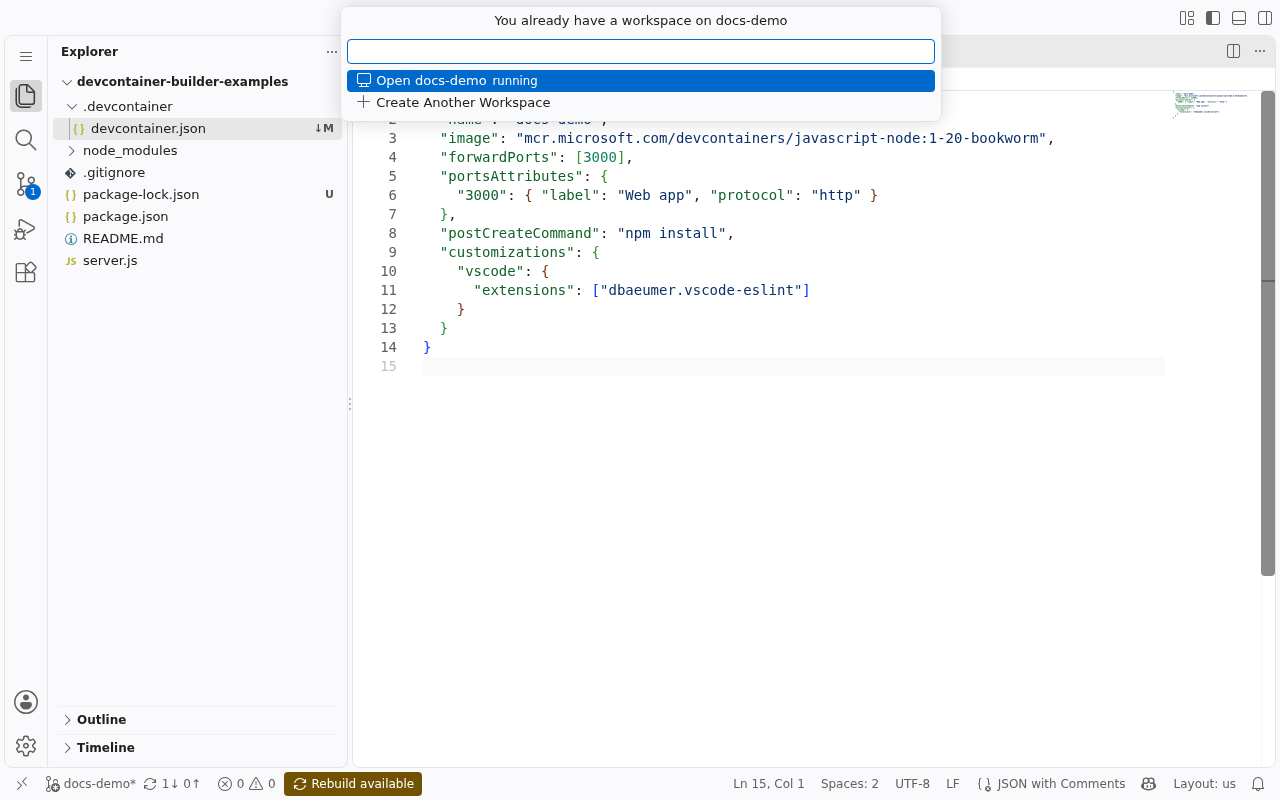
Already have a workspace on that repository and branch? The command offers to open it instead, starting it if it's stopped.
Without VS Code
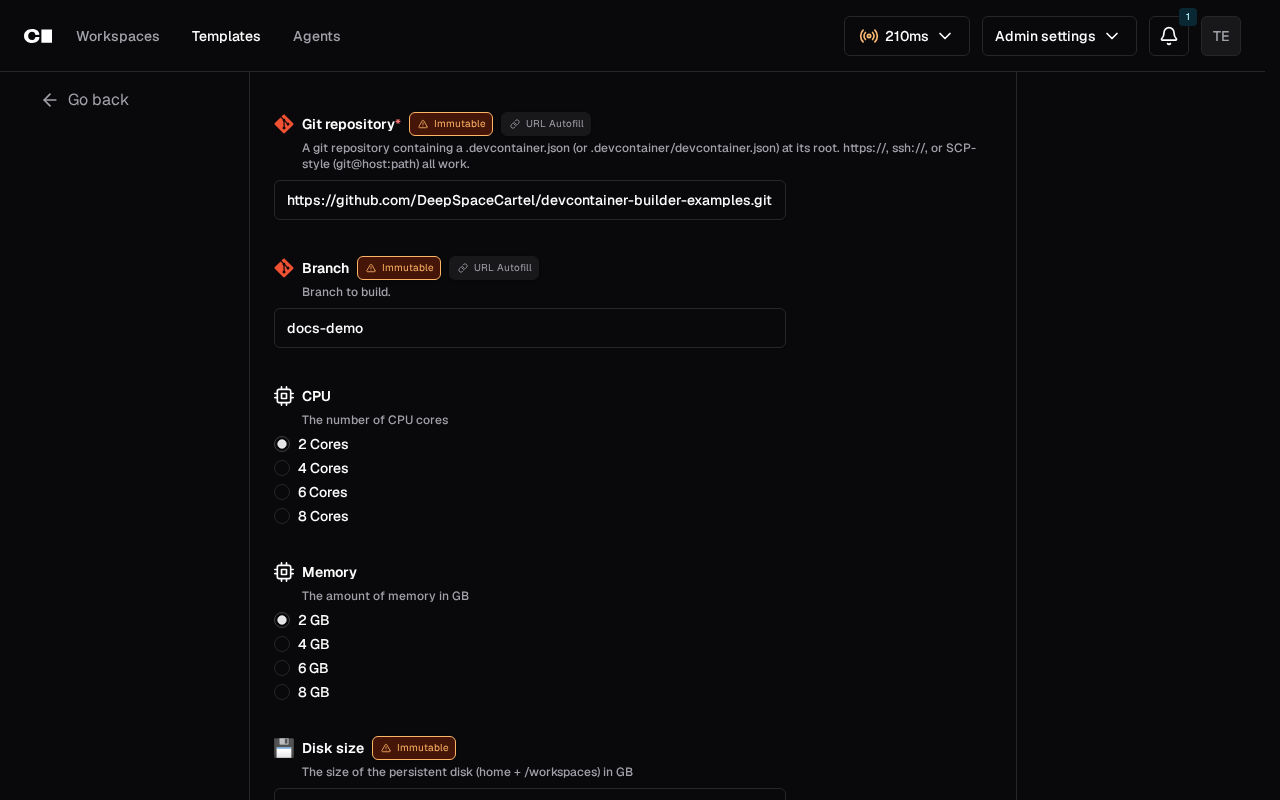
The Coder dashboard's Create workspace asks for the same Git repository and Branch, and its workspace page opens VS Code Desktop or VS Code in the browser (the VS Code Web button).
3. Look around
When VS Code asks whether you trust the authors of the folder, trust it: it's your repository, and VS Code doesn't run the extension in Restricted Mode.
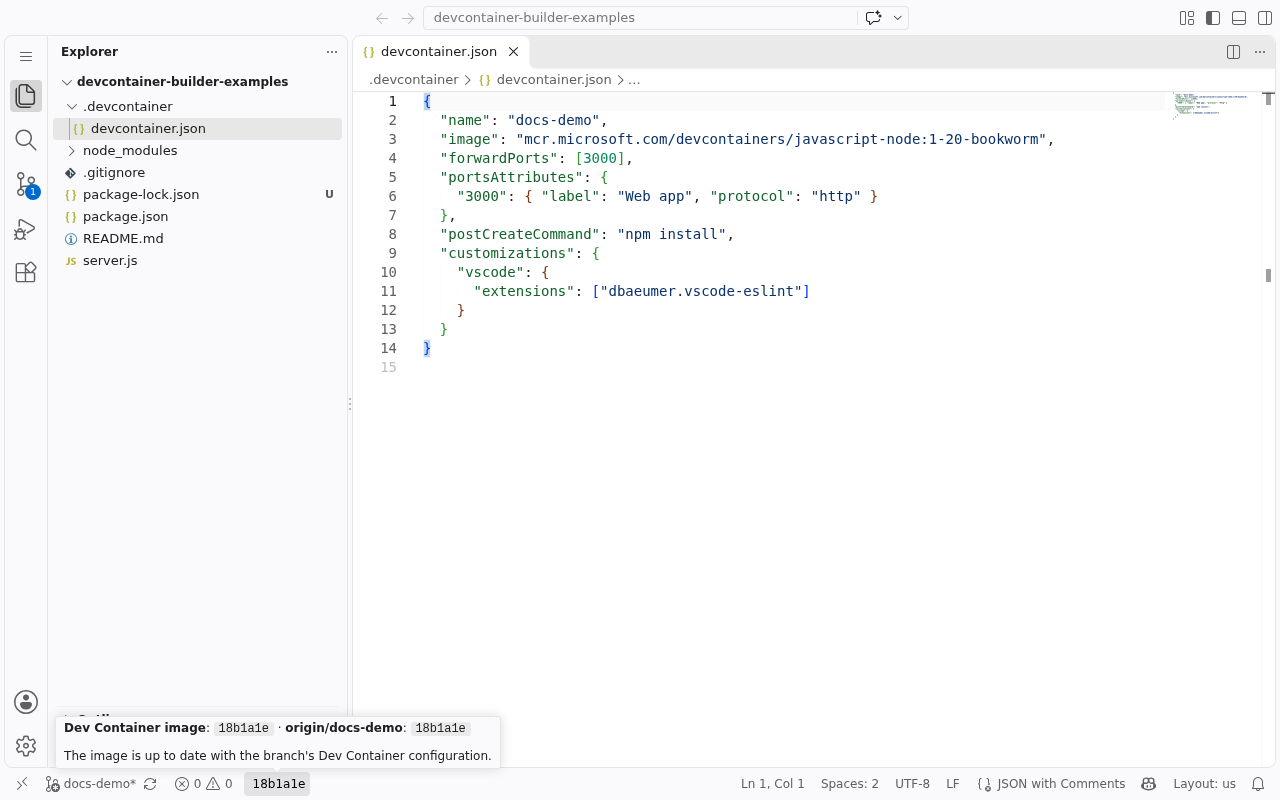
- The status bar shows the commit the workspace's image was built from,
e.g.
a1b2c3d. - Terminals run as the repository's
remoteUser, with itscontainerEnv/remoteEnvset. - The repository's VS Code extensions and settings (its
customizations.vscode) are installed. - Forwarded ports are listed as apps on the workspace page in the dashboard.
- Your home and the repository persist across restarts. Everything else comes fresh from the image on every start.
4. Change the Dev Container configuration
Edit .devcontainer/devcontainer.json, for example by adding a Feature.
-
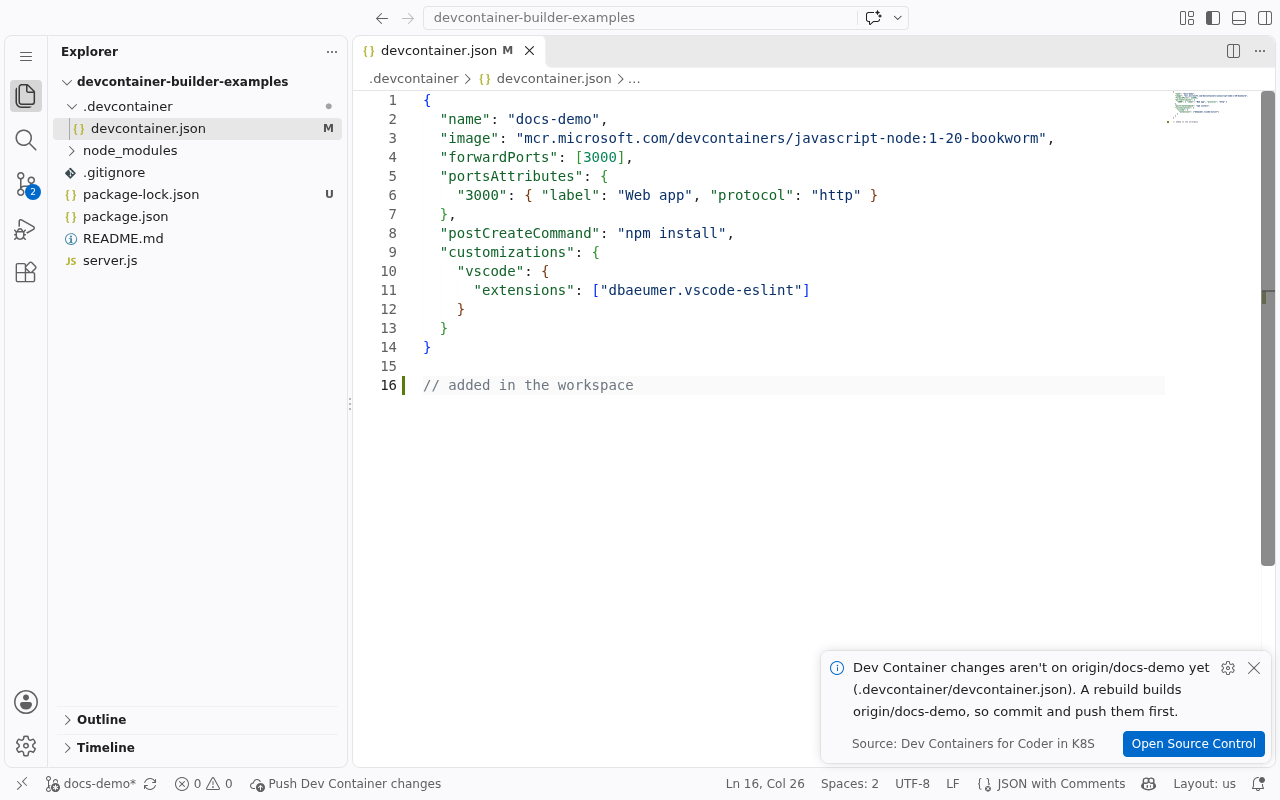
The status bar shows Push Dev Container changes: a rebuild always builds what's on the branch's remote, so local edits don't count yet.
-
Commit and push.
-
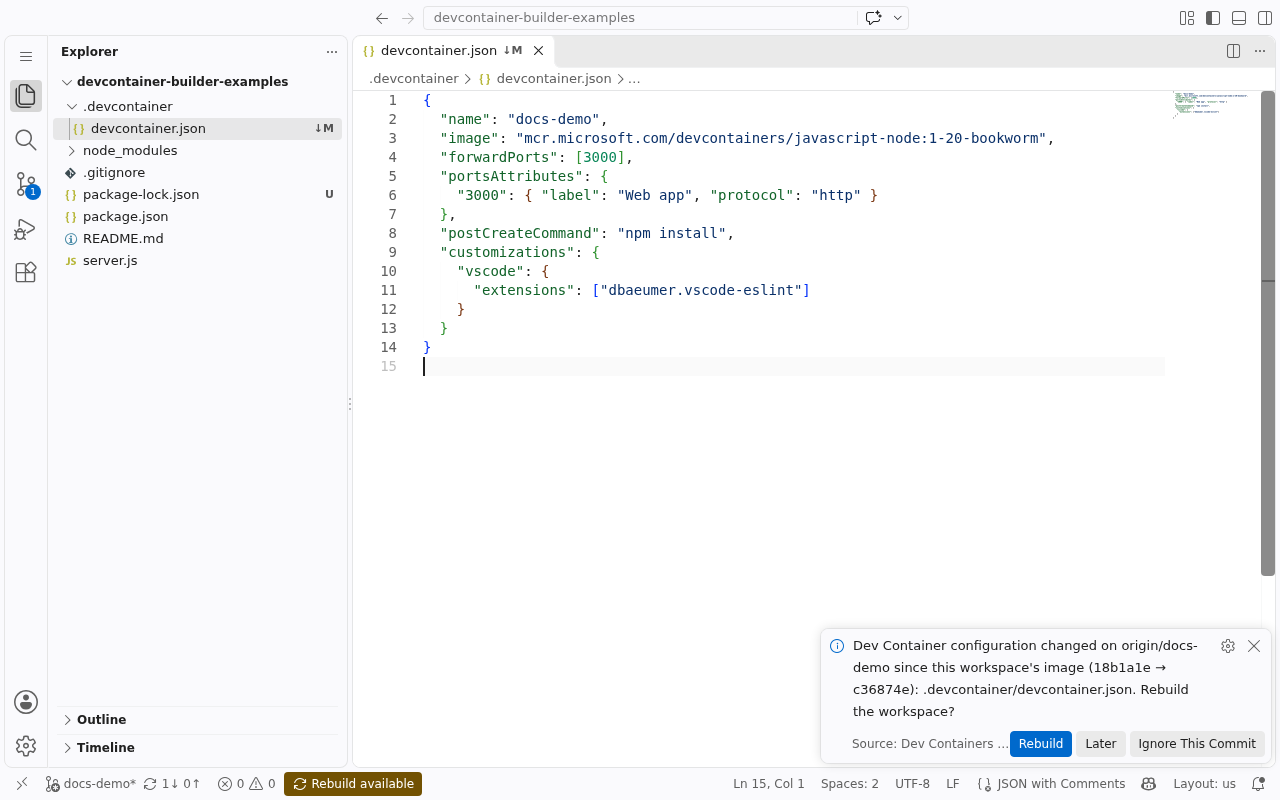
The status bar shows Rebuild available, with a notification: Rebuild, Later or Ignore This Commit.
-
Rebuild. The workspace restarts on an image built from the pushed configuration. Your home and the repository folder are kept, including uncommitted work.
One-click Rebuild needs a Coder session inside the workspace. Run
coder login <your Coder URL> once in its terminal. Without it, Rebuild
opens the workspace's settings page, where you increase Rebuild by hand.
5. A repository without a configuration
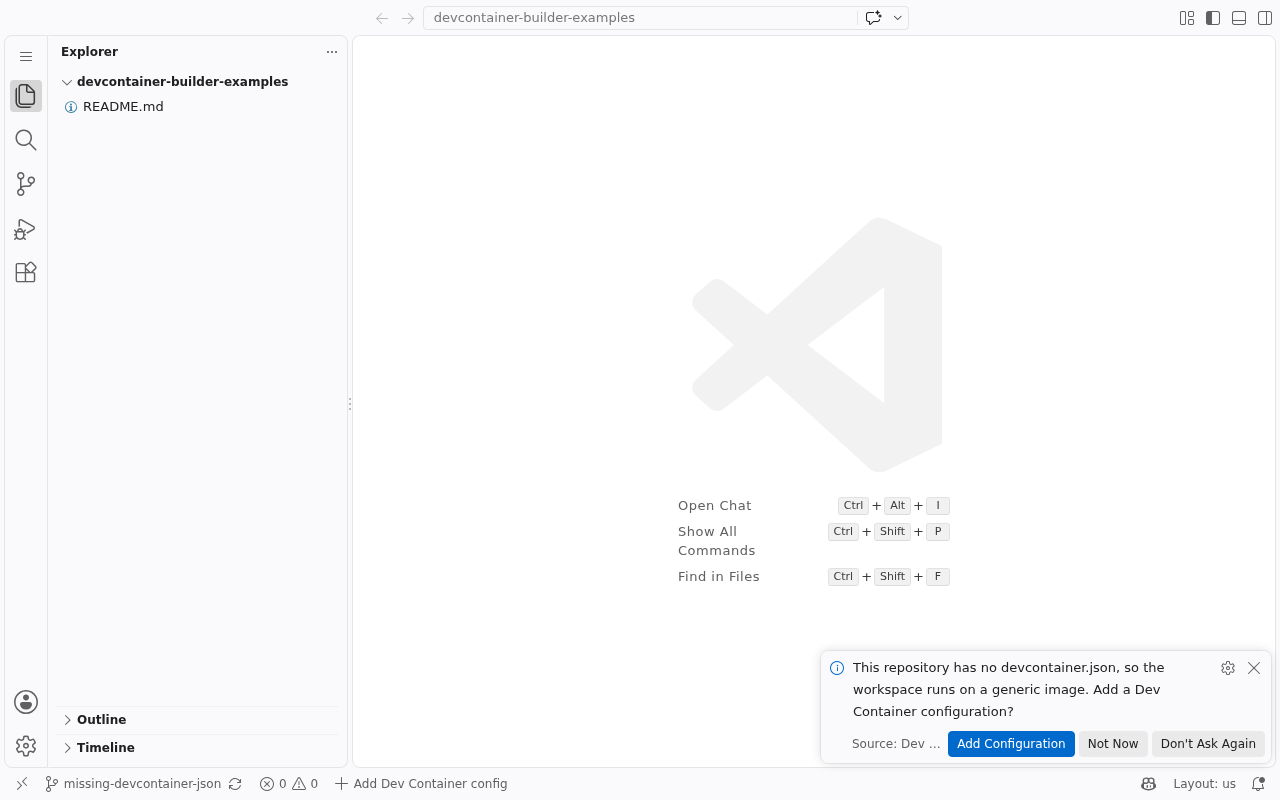
Clone a repository that has no devcontainer.json. It still gets a
workspace, on a generic Ubuntu image. The status bar shows Add Dev
Container config, which opens the Dev Containers extension's own Add Dev
Container Configuration Files…: pick a template and Features, then commit,
push and rebuild as above.
Next
- Working in a workspace covers Dev Container variables, ports, what persists, and the rebuild prompt in detail.
- devcontainer.json support lists every property and what it becomes in a workspace.